

A listing photo can look great on a property page and still feel lifeless on social media. It happens when a strong still gets turned into a vertical clip with awkward zooms, stiff motion, or a slideshow feel. What looked polished as an image suddenly feels cheap in Reels, Shorts, or listing teaser posts.
That gap shows up quickly in real estate. Bad motion can make a kitchen look warped, a living room feel tighter than it is, or an exterior shot look like a template effect instead of a property preview. If your listing photos are already solid, the job is not to dress them up with heavy animation. It is to add enough movement to make them feel smooth, current, and ready to post. That is where a browser-based option like Media.io makes sense.
The Real Problem Behind Property Photo Teasers
The main question is not just how to animate a photo. It is how to turn a listing image into something that feels like a real property teaser instead of a moving flyer.
For that to work, motion needs to stay controlled. The clip should feel consistent from start to finish, and the image still has to look like the original space. Random movement across walls, windows, furniture, and corners usually does more harm than good. Interior shots are especially easy to overwork.
That is why this tends to be a practical problem, not a creative one. Many agents do not have time to reshoot a walkthrough for every listing. Some properties move fast, some budgets are limited, and sometimes the only finished assets are the photos. In that case, turning existing stills into short teaser clips is often the quickest way to get usable social content without booking another shoot.
What A Publishable Result Should Look Like
A good real estate teaser should feel like simple camera movement, not a special effect. Think of a slow push-in on a bright living room, a soft pan across a kitchen, or a clean reveal of the front exterior. With Media.io’s image to video tool, the goal is to keep that movement subtle and controlled, so the frame stays stable, the room still feels natural, and the overall look feels polished.
That is usually easier when the workflow starts with an image and a clear motion prompt instead of a long editing process. Media.io is a browser-based creative platform that brings multiple video models into one place, which helps when one model handles a room or camera style better than another. It also gives you template-assisted starting points and quick ways to refine the result after generation, so you can steer the clip back toward the original listing photo if needed.
In real estate, subtle motion usually works best. The space should stay the focus.
How To Complete A Property Teaser Workflow
If you want a simple way to turn a still photo into a social-ready clip, Media.io’s image to video tool keeps the process short: upload the image, describe the motion, generate, and refine if needed. That is often easier than trying to build a teaser from scratch.
Step 1. Upload A Clean Listing Image
Open the image-to-video workflow and upload a bright, uncluttered room photo or a strong exterior shot.
Start with your best hero image. Do not try to animate the whole listing gallery at once. A well-composed living room, kitchen, facade, or balcony shot usually gives you a better first result because the image already has clear visual structure.
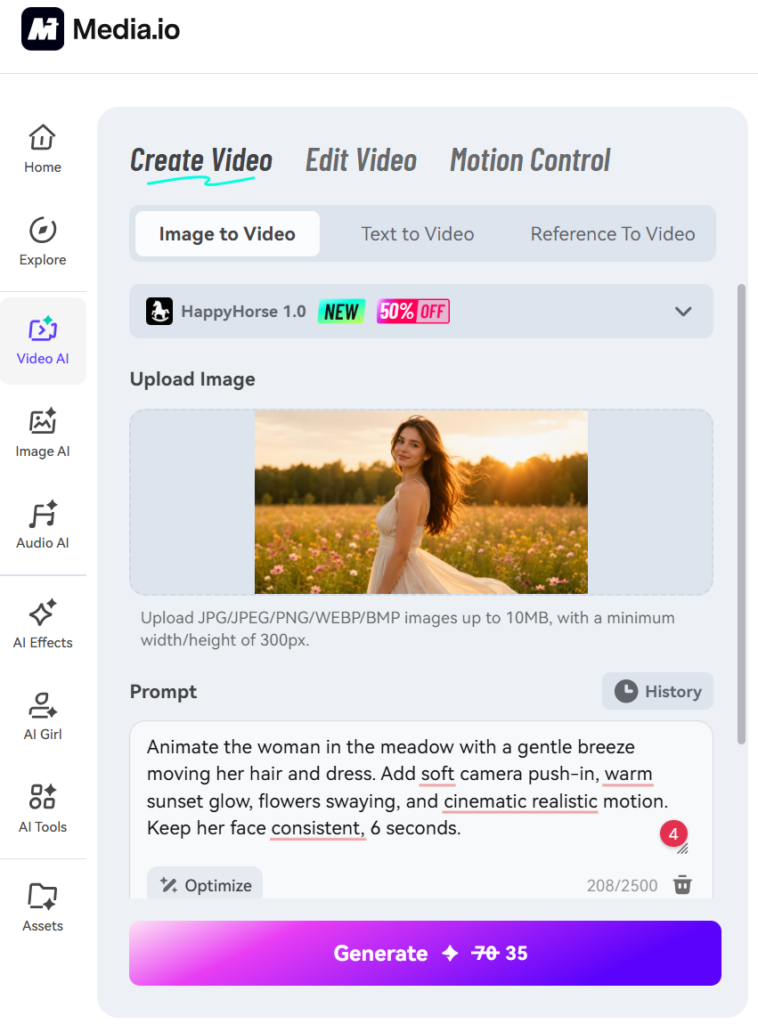
Step 2. Describe Controlled Motion
Write the prompt like a camera note, not an effects request. Good examples include “slow push-in through bright modern living room,” “gentle pan across staged kitchen,” or “elegant reveal of the exterior facade in soft daylight.”
Pick a model or template direction that supports clean promotional visuals. This is where having more than one video model helps. Some outputs will look smoother or more believable depending on the room layout and the kind of movement you want. Keep the motion restrained.
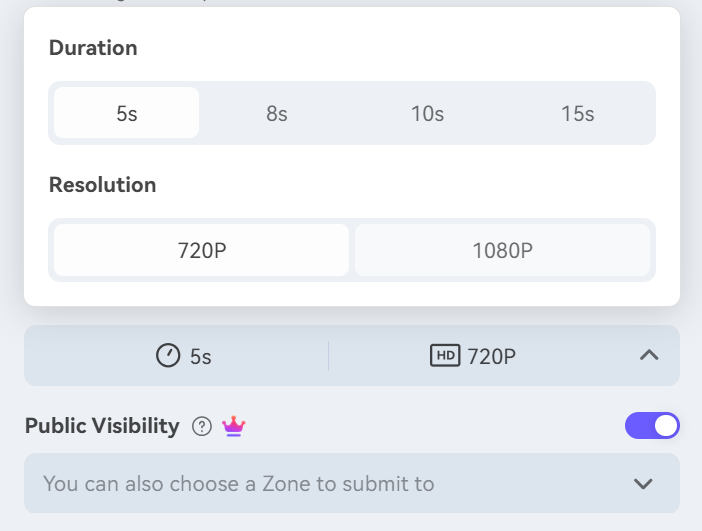
Step 3. Generate, Check Quality, And Export
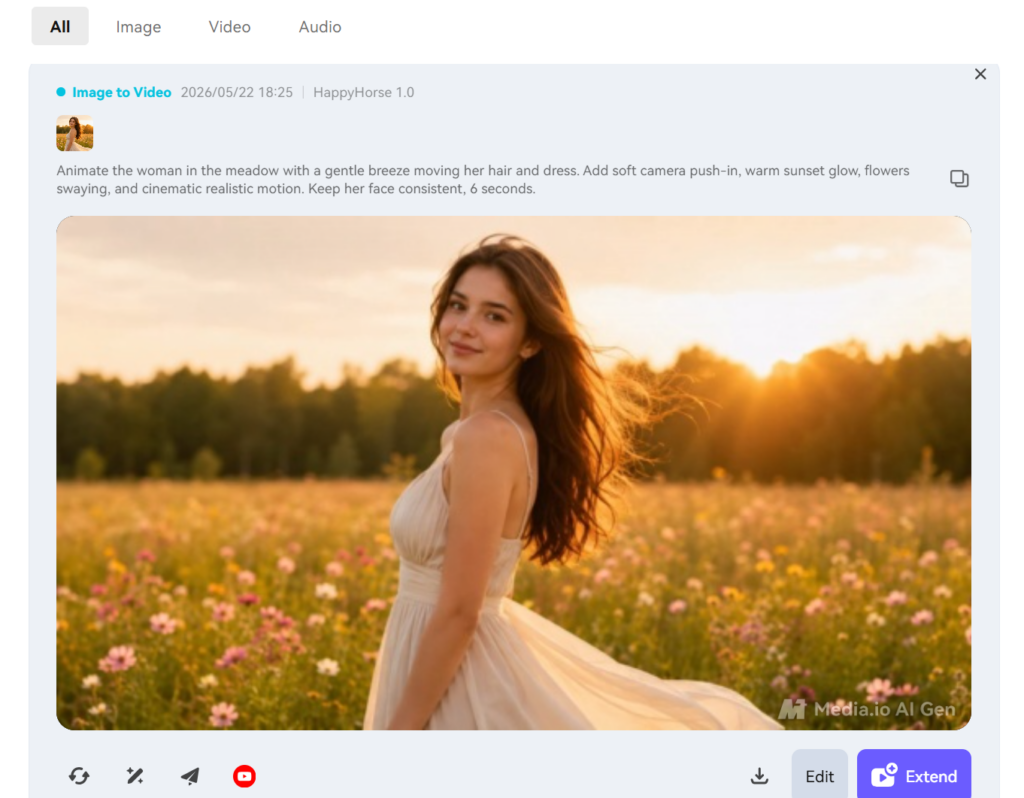
Generate the clip, then review it before exporting. Check whether the motion feels smooth, whether the depth looks believable, and whether the room still reads like a real space. If the result feels too dramatic or starts distorting the scene, regenerate with a calmer prompt.
Once it looks right, export the clip and move it into your social or listing workflow. It might become a vertical teaser for Instagram or a quick promo for a new listing post. Either way, give it one last review before it goes live.
Tips And Mistakes To Keep In Mind
A few small choices make this process go much better.
Use well-lit photos with clear architectural lines. Bright rooms, straight walls, clean framing, and tidy staging usually translate into better motion clips. If the original image feels dark, cramped, or messy, animation will not fix much.
Keep the movement matched to the room. A slow push-in often works well for living rooms and bedrooms. A gentle side-to-side move can suit kitchens or exterior shots. Most of the time, you need less motion than you think.
The most common mistake is asking a static interior image to do too much. Fast sweeps, dramatic perspective changes, and heavy cinematic movement can make an ordinary listing photo look artificial. Another mistake is starting with a weak image and hoping motion will save it. Usually, it does not.
Review before publishing. Some scenes need a second pass to keep motion and lighting consistent, so it is worth checking the output before you post it.
Final Takeaway
If you already have strong listing photos, turning them into short motion clips is usually faster than planning new teaser footage. It is also a practical way to make property social content feel cleaner and more usable than a simple slideshow.
The basic approach is straightforward: start with one strong image, use a restrained motion prompt, review the result, and regenerate if needed. That saves time, but the result still depends on the source photo and how much motion you ask for.
FAQs
Do interior or exterior photos work better for real estate teaser clips?
Both can work, but interiors usually need a lighter touch. Exterior shots often handle motion well because the scene feels more open. Interiors can work just as well when the photo is bright, balanced, and uncluttered.
How long should a property teaser clip be for social media?
Short clips tend to work best. In most cases, you only need enough time to highlight one strong room or one clear exterior view. The goal is to spark interest, not replace a full walkthrough.
Can I refine the clip after generation if the motion feels too strong?
Yes. That is a normal part of the process. If the first result feels exaggerated, adjust the prompt and generate again. For real estate teasers, subtle motion usually looks better.