
A 12-minute tutorial is ready, but the captions are not. Writing every line by hand and matching it to the right moment can easily turn into another editing task. Captions are not optional either, since plenty of people watch with the sound off.
This is the job auto captions were built for. Modern video editing software can use speech recognition to write the text and set the timing, leaving you to check the result instead of producing it manually. This guide covers how the technology works, how to run it inside Filmora, and how to keep the output accurate.
Part 1. What an Auto Caption Generator Does and Where It Helps
An auto caption generator picks up spoken words and writes them on screen with the video. The lines are timed to the speech, so you do not have to match every caption by hand. An AI subtitle generator follows a similar process, while captions can also identify useful audio details such as music or other sounds.
Transcripts work differently because the text does not have to appear in sync with the video. Translation is separate too, although some caption tools include it as an extra feature. Automatic results are not always perfect, so names, accents, technical terms, background noise, and overlapping voices deserve a quick check. The table below shows where these captions are commonly used:
| Content Type | What Captions Have to Do There |
| YouTube Videos | Hold a viewer who started the clip muted, and supply readable text that search can index. |
| TikTok, Reels, and Shorts | Keep pace with fast cuts on a small screen, where viewers decide in seconds whether to stay. |
| Online Courses | Let students follow exact technical wording, and help the material meet accessibility requirements. |
| Interviews and Podcasts | Show who is speaking across long stretches of talk with little on-screen action to follow. |
| Marketing and Tutorial Videos | Put product names, figures, and steps into text so nothing important depends on clear audio. |
Part 2. Generating Captions in Filmora Step by Step
When captions come from another tool, you usually have an extra file to manage. It has to return to the editor before the video is finished. Filmora skips that handoff by putting its AI subtitle generator directly in the editing workspace.
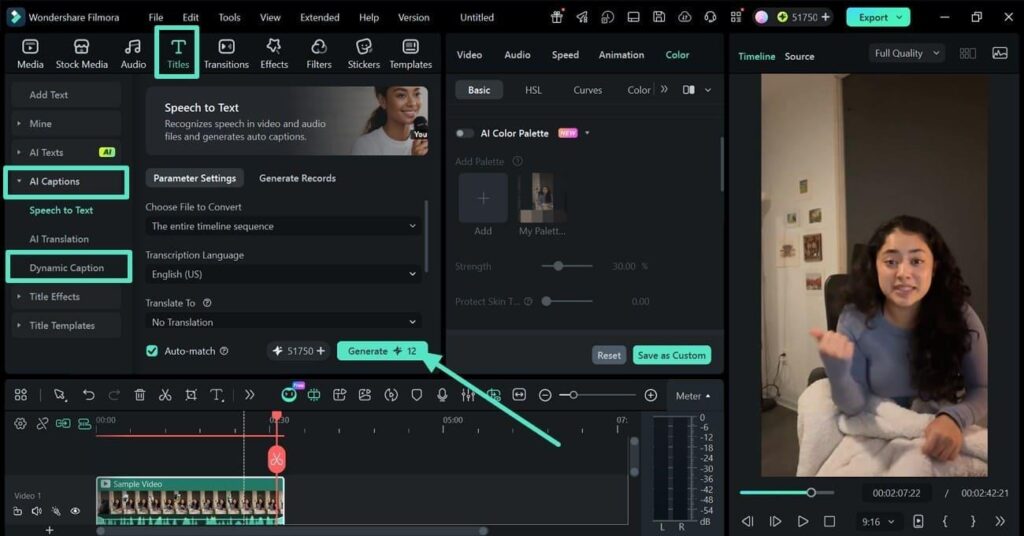
The feature is called Dynamic Captions and appears under “Titles” > “AI Captions.” Filmora states that it can reach up to 99% transcription accuracy with clear audio. It also uses smart sentence segmentation, so caption breaks follow natural speech pauses instead of a fixed word count. The following 4 steps cover the process on both Windows and Mac:
Step 1. Import the Video and Add It to the Timeline
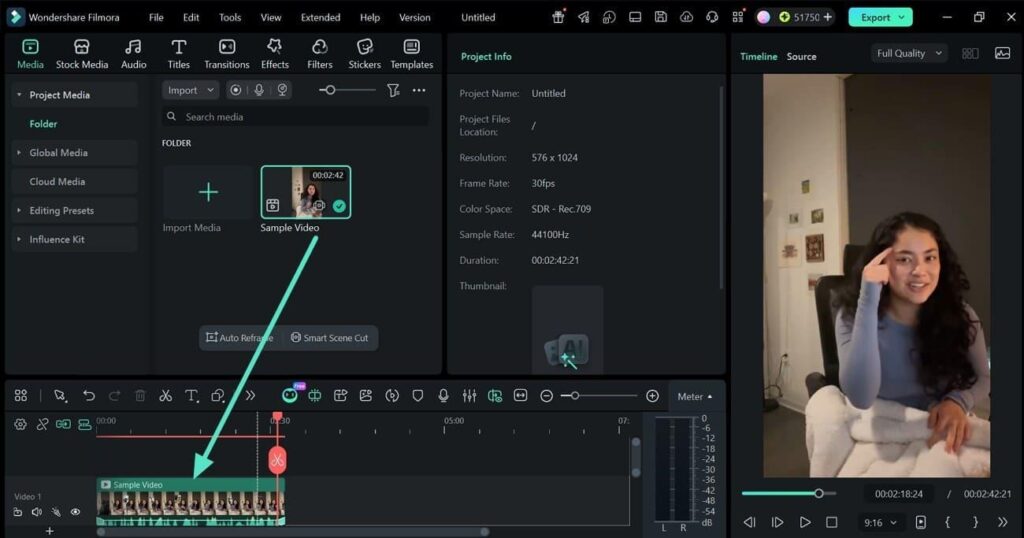
Open Filmora and import the video you want to caption. Drag it from “Project Media” onto the timeline so the footage is ready for transcription.
Step 2. Generate Dynamic Captions
Head to “Titles > AI Captions > Dynamic Caption.” Select the timeline sequence and choose the “Transcription Language,” along with a translation language if required. Use “Generate” to create the caption sequence.
Step 3. Review, Style, and Save the Captions
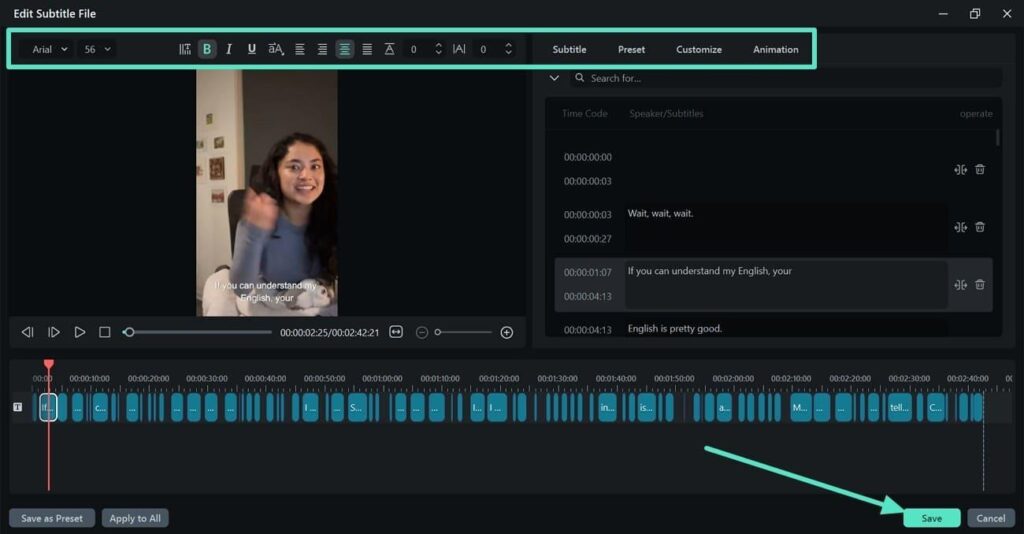
Open the generated sequence and review the transcription for incorrect words, names, or punctuation. The toolbar also lets you adjust the font, preset, customization, and animation. Once the captions look right, finish with “Save.”
Step 4. Set the Export Options and Save the Video
Navigate to “Export” and choose where you want to save the finished video. Set the preset, device, resolution, encoder, and quality as needed, then use “Export” at the bottom to render the video with the captions included.
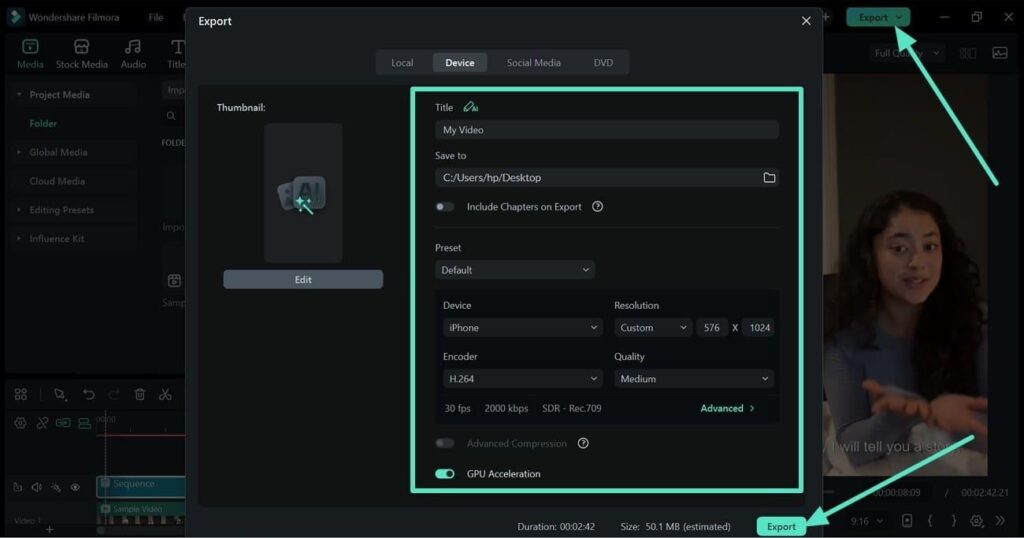
Note: Generating a new caption track draws on AI credits, while every edit afterward is free. Style, retime, and restyle as much as you like once the text exists.
Part 3. Getting Cleaner Results From Automatic Transcription
Generation is fast, but auto subtitles still depend heavily on the quality of the source audio. A few checks before and after transcription below can make the finished captions much cleaner:
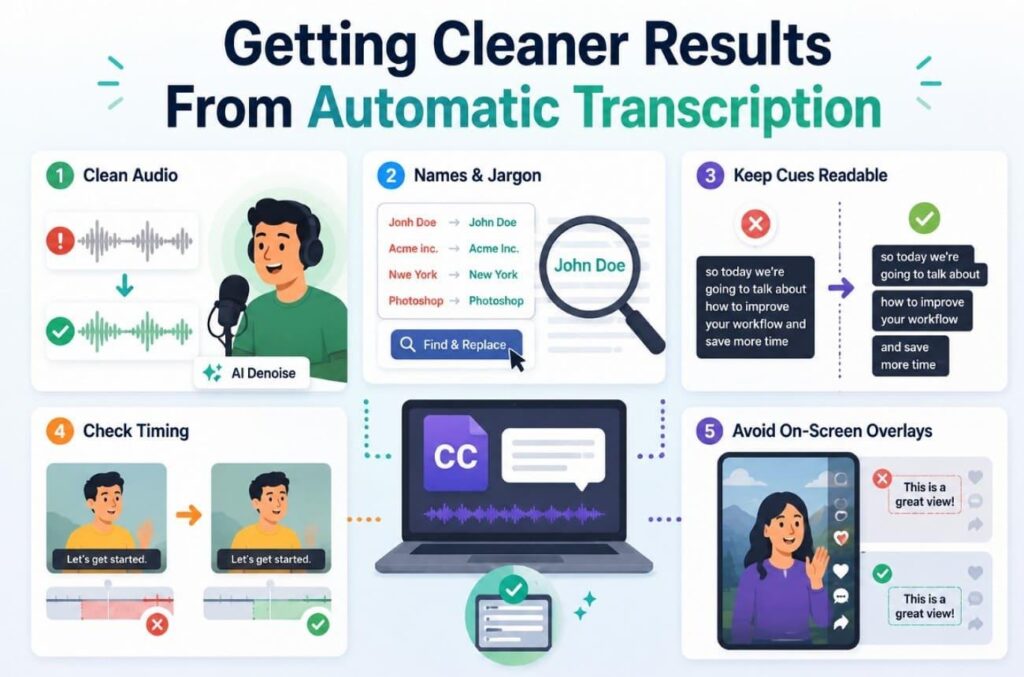
- Start With Clean Audio: Noise, hiss, hum, wind, and room echo can reduce speech clarity and make transcription less reliable. Try Filmora’s AI Audio Denoise or DeReverb first, then generate captions from the cleaner dialogue for better results.
- Fix Names and Jargon First: Check names, brands, locations, abbreviations, and technical terms before polishing ordinary words. These are more likely to need manual correction. When the same error appears repeatedly, use Find and Replace instead of editing every caption individually.
- Keep Each Cue Readable: Long or crowded captions make viewers work harder while also following the visuals. Break lengthy text into shorter cues at natural pauses in the speech, while keeping related phrases together so each caption remains easy to understand.
- Review Timing Around Edits: Cutting, trimming, or rearranging footage can affect how captions line up with the spoken dialogue. Replay every edited section and check caption entry and exit points, making small timing adjustments whenever text appears too early or remains onscreen too long.
- Keep Text Clear of Screen Controls: Size and position captions for the final viewing format, especially with vertical video. Leave enough space around interface areas where platform buttons, descriptions, or other overlays may cover the text.
Part 4. Caption Features That Go Past Plain White Text
Accurate transcription is only the starting point. Captions also need to be readable and fit the style of the video. This is where an auto subtitle generator built into video editing software offers more control than a basic transcription tool.
Word-Level Highlighting
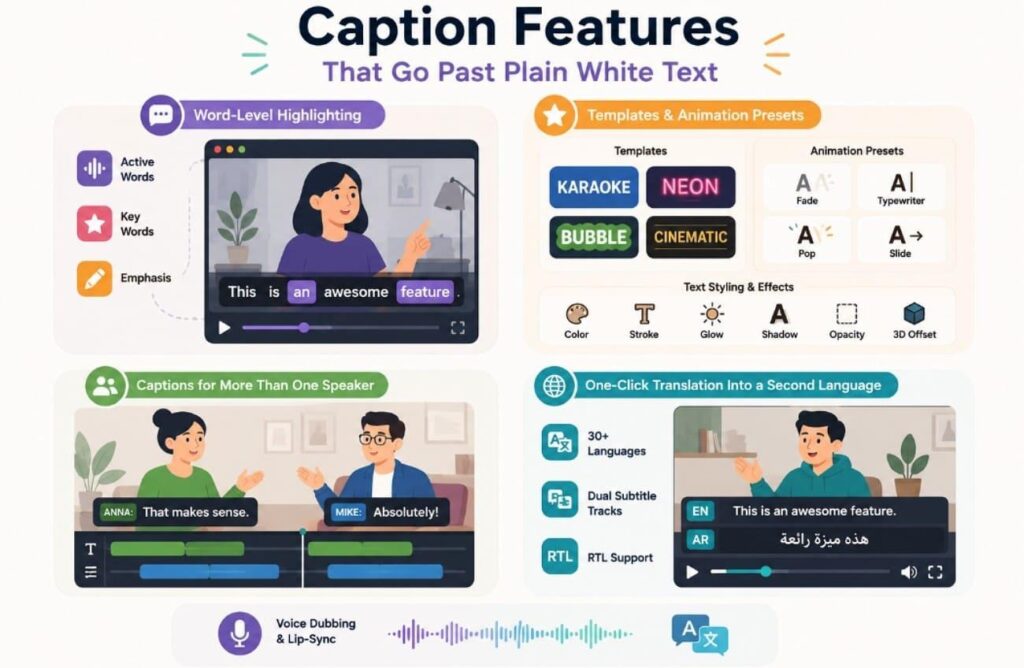
Dynamic Captions has 2 highlight modes. “Active Words” highlights each word as it is spoken, creating the familiar karaoke-style effect. “Key Words” uses AI to identify and highlight important words or phrases instead. For manual control, Emphasis lets you select specific text and make it stand out.
Templates and Animation Presets
Filmora separates caption styling from animation for more flexible visual control.
- Caption Templates: Choose from 100+ ready-made styles, including Karaoke, Neon, Bubble, and Cinematic, to quickly establish the overall caption look.
- Animation Presets: Apply 120+ effects such as Fade, Typewriter, Pop, and Slide separately from the caption design, giving you more control over how text enters and moves.
- Detailed Text Control: Fine-tune captions with 13 text keyframe properties. Adjust color, stroke, glow, shadow, opacity, and other settings, while 3D spatial offset controls text depth and positioning.
Captions for More Than One Speaker
Long conversations can become difficult to follow when several people are talking. Multi-Speaker detection identifies speakers and adds labels automatically, reducing the need to mark each speaker by hand. Track-level styling also lets you apply changes across one caption track without changing other tracks in the project.
One-Click Translation Into a Second Language
Dynamic Captions can translate captions into 30+ target languages while preserving their timing and segmentation. The translated text appears as a synchronized auxiliary subtitle track alongside the original, while the original keeps its Dynamic Caption styling. RTL languages such as Arabic are supported as well. Voice dubbing and lip-sync are handled separately through Filmora’s AI Video Translation feature.
Conclusion
Captioning now involves more reviewing than manual typing. An AI subtitle generator takes care of the first draft, including the words and their timing. From there, you can fix mistakes and shape how the captions look. Filmora keeps that work with the rest of the edit, so there is less jumping between tools.
Frequently Asked Questions
1. Are auto captions accurate enough to publish without editing?
With one clear voice and little background noise, there may not be much to change. Names and specialist terms are still worth checking, though. It is quicker to clean up a few misses than type the captions from scratch.
2. How long does an auto caption generator take on a longer video?
The captions process while you keep working in Filmora. A short clip may be ready fairly quickly, while a longer recording naturally needs more processing time.
3. Can I export auto subtitles as a separate SRT file?
Captions generated through the Speech to Text route save as a standalone SRT file. That format uploads to platforms that would rather render captions with their own player.
4. Does an AI subtitle generator handle more than one language?
Transcription covers more than 50 source languages and can automatically identify the spoken one. Translation into over 30 target languages arrives as a second track, so both can appear together.
5. Why do some auto captions break in the middle of a sentence?
Segmentation follows pauses in speech, so a speaker who runs sentences together gives the tool few natural break points. Splitting the cue by hand and rechecking its timing is faster than regenerating the whole track.