
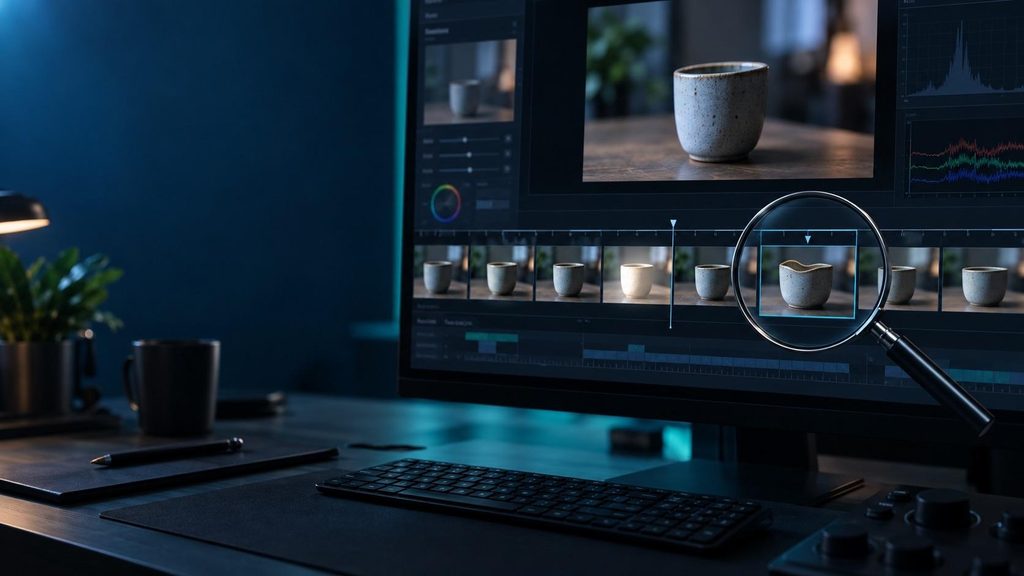
An AI-generated video can look convincing on the first watch and still contain a distracting error: a face changes between frames, a product bends during a turn, or the lighting flashes for an instant. Rewriting the entire prompt may produce another video, but it does not tell you what went wrong.
A more reliable method is to locate the first bad frame, classify the error, and change the part of the workflow most likely to affect it. This guide uses videos made with reference-led tools such as Seedance 3.0 as examples, but the inspection process works with any AI video generator.
First, check which file contains the error
Keep the original file downloaded from the generator. If you have also edited or compressed the video, compare that exported version with the original at the same timestamp.
If both files show the same warped object, the problem was present before editing. If the original looks fine but the export flickers or stutters, inspect the editing and export settings before generating anything again. If the error appears only in one browser or player, test the file in another player as well.
For a controlled comparison, create a short test with the same prompt, reference assets, aspect ratio, and output settings. The Seedance 2.5 video generator is one place to run that test. Save the settings with each result. Otherwise, it is easy to mistake a change in resolution or references for an improvement in the prompt.
Find the first bad frame
Watch the clip once at normal speed and write down the approximate time of each problem. Use simple notes such as “face changes around 6 seconds” or “background flashes just before the cut.”
Next, extract a set of still frames. If you have FFmpeg installed, this command saves two frames per second:
ffmpeg -i original.mp4 -vf fps=2 frames/frame_%04d.png
Create the frames folder first, then run the command from the folder containing original.mp4. Two frames per second are useful for finding a problem area, but they can miss an error that lasts only one or two frames. Once you know the approximate time, inspect that section frame by frame in a video editor. You can also extract a short section at its original frame rate:
ffmpeg -ss 7 -i original.mp4 -t 2 frames/detail_%04d.png
This second command starts near the seven-second mark and saves frames from the following two seconds. Adjust the start time to match your clip.

Illustration: The middle frame suddenly becomes brighter while the subject and camera position remain stable.
Look for the first frame where the image stops behaving as expected. The moment before the error is often more informative than the worst-looking frame. For example, a product may begin to deform as a hand passes in front of it. That points to an interaction the model struggled to maintain, rather than a general lack of image quality.
Classify the defect before changing anything
Most visible problems fit into one of four groups:
| What you see | What to inspect first |
| Brightness or color flashes between nearby frames | Lighting instructions, scene changes, and whether the original file also flashes |
| A face, logo, or object gradually changes shape | Subject references, occlusion, and how much the subject rotates |
| Motion suddenly jumps or reverses | The requested action, camera movement, and any cuts or frame-rate changes |
| Blocks, smearing, or softness appear after export | Compression settings and the original file |
These are starting points, not automatic diagnoses. A deliberate change in lighting is not flicker. A character turning away from the camera will naturally look different. Compare what happens in several neighboring frames before deciding that the video has an error.
A small defect log helps when testing revisions. Record the timestamp, affected area, what changed, whether the original file contains it, and the next change you plan to test. “The bottle neck narrows at 5.4 seconds when the hand covers it” is much more useful than “the bottle looks weird.”
Fix flicker without hiding the real problem
For brightness flicker, compare an area that should stay relatively stable, such as a wall or tabletop. Does its brightness jump while the action and camera remain steady? If so, check whether the prompt asks for conflicting light conditions, such as both “constant soft daylight” and “dramatic moving spotlights.”
Try a new generation with one clear lighting direction. Keep the location, time of day, and dominant light source consistent. If the change is mild and the subject itself remains stable, color correction in an editor may be enough. If a face or object changes along with the flash, color correction will only mask part of the problem; return to the generation step.
Fix shape changes by simplifying the difficult moment
Shape drift often becomes visible when a subject rotates, crosses behind another object, or interacts with hands. Mark the exact movement that begins the change. Then test a simpler version of that movement.
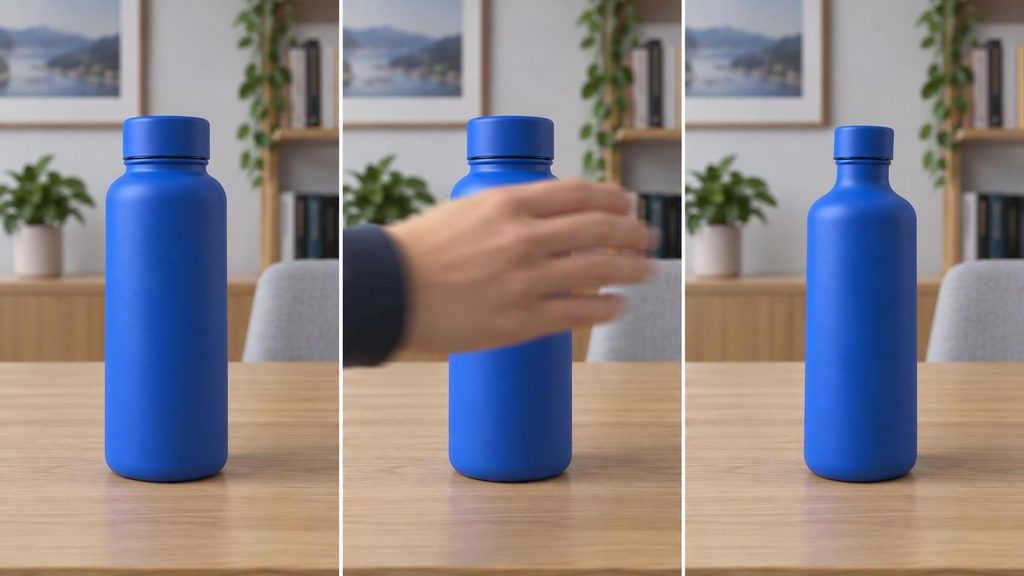
Illustration: The bottle changes shape after a brief occlusion by a hand.
If a product bends while someone picks it up, try showing the product resting on a surface before attempting the hand interaction again. If a face changes during a fast camera move, reduce the camera movement and keep the person at a more consistent distance. Use a clear reference image for details that must remain recognizable, but avoid adding unrelated references that disagree about the subject.
For a long scene, another option is to generate two shorter segments and join them at a natural edit point. The join still needs inspection, but a cut can be easier to control than forcing one continuous generation through a complex action.
Fix motion jumps by separating subject and camera instructions
A prompt may ask a person to turn, a product to spin, and the camera to circle both of them. When motion goes wrong, it can be hard to tell which movement caused it.
Describe the subject’s action and the camera’s action separately. Give each a clear start and end. For example: “The person places the box on the table and removes their hands. The camera stays still until the box is resting, then slowly moves closer.” Test that sequence before adding another movement.
Do not assume that increasing the export frame rate will repair motion that already jumps in the original. Extra frames cannot restore a missing action. Some editors can create intermediate frames, but those frames also need checking for warped hands, edges, and text.
Check the repaired version in motion
After a revision, compare the new clip with the old one at the same trouble spot. Did the original defect disappear? Did a new defect appear elsewhere? Inspect the neighboring frames, then watch the entire clip at normal speed. A technically cleaner frame is not enough if the action now feels unnatural.
Finally, check the version you intend to publish—not just the downloaded original. View it on a phone, with and without sound, and confirm that the important subject remains clear at its actual display size. Keep the defect log and the settings for the successful version. The next time a clip flickers or changes shape, you will have a tested way to diagnose it rather than starting over with a longer prompt.
The practical rule is simple: find the frame, identify the kind of failure, and change one relevant variable at a time. That turns an unpredictable-looking result into a problem you can inspect and improve.