
Our team is two people. Maren writes the Kotlin; I do the rest, which this month means the Google Play store listing for Larder Lane, a pantry app that tells you what is about to expire. The app and the two of us are made up for this article, but the listing problem is real: one icon, a feature graphic, and four phone screenshots in English, Spanish, German and Polish. That is 21 image files, and every one of them has to pass Play’s rules and read correctly on a small screen.
ByteDance released Seedream 5.5 on 9 November 2026, and two of its headline changes, native transparency and better small text, land right on top of that job. I have not run 5.5 on our listing yet. What follows is the plan I would hand Maren: what Play actually requires, what the model page documents, what early testers have posted, and the checks every file goes through before upload.
What ByteDance says changed
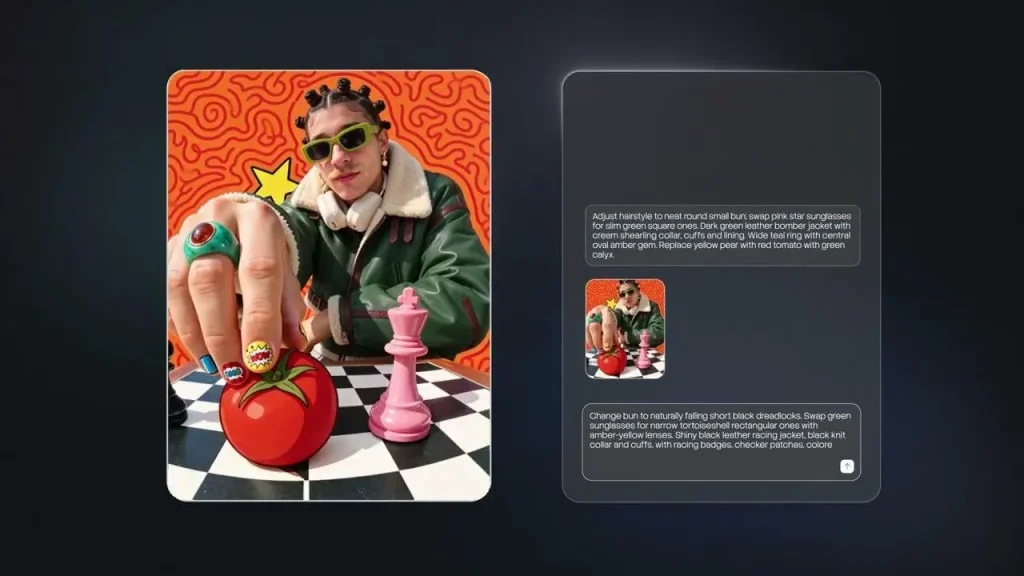
A frame from the launch video @ByteDanceSeed_ posted on X: the edited image on the left, the chain of edit instructions on the right. The post claims pixel-level preservation of unedited regions across 100 edit rounds, transparent and semi-transparent output with native RGBA, and better small-text rendering, and says the model is coming to Dreamina, CapCut and BytePlus.
The Seed team’s launch post on ByteDance’s research blog gives the details. These are ByteDance’s own evaluation numbers, not mine. In tests covering Chinese and English text, including densely set small text, the severe text corruption rate was 0.4% and the minor rate 1.7%, both lower than the previous version. Unedited regions are kept at the pixel level, without colour shifts, across up to 100 rounds of edits. The model also generates images with an alpha channel, with full and partial transparency. The post adds that a Pro version of the 5.5 series will follow.
For a store listing, text and transparency are what count; realism matters less when most of what we ship is flat illustration and interface.
What Play actually asks for
I checked the current rules in Google’s Play Console Help page on preview assets and the Play icon design specifications before planning anything. The table below maps each asset to the request I would make and the clean-up it needs afterwards.
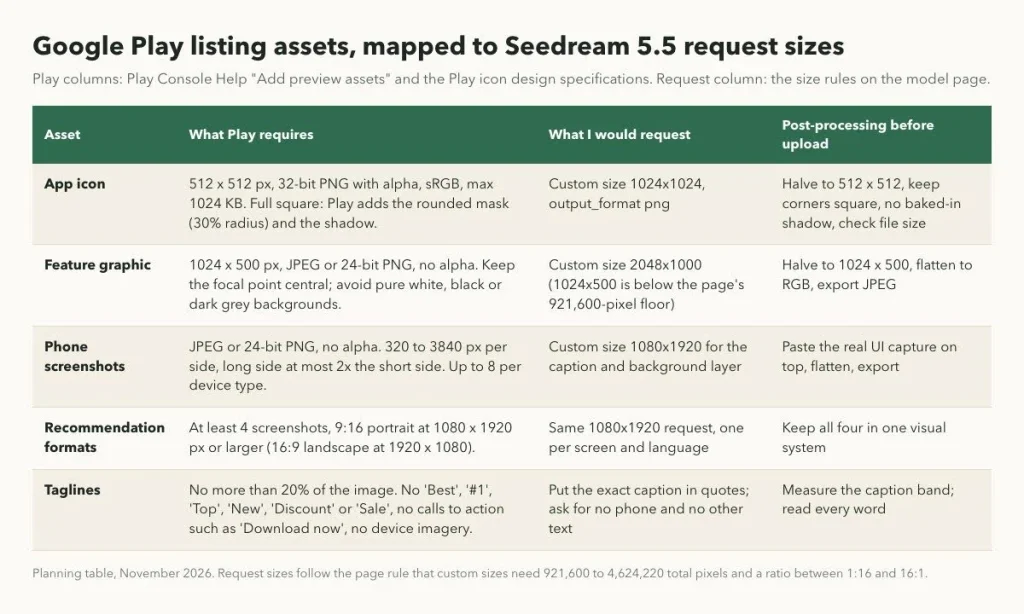
Play’s requirements, the request I would send for each asset, and the post-processing before upload.
Three rules shape the whole plan. The feature graphic and screenshots must be JPEG or 24-bit PNG with no alpha channel. The icon must be a 32-bit PNG, 512 by 512, no larger than 1024 KB, drawn as a full square because Play applies the rounded mask and shadow itself. And screenshots must show the actual in-app experience, with taglines taking up no more than 20% of the image. That last rule decides what the model is allowed to draw.
Sizes: why the icon can’t be requested at 512 px
The model page sets a floor and a ceiling on custom sizes: 921,600 to 4,624,220 total pixels, with a width-to-height ratio between 1:16 and 16:1. Play’s icon (262,144 pixels) and feature graphic (512,000 pixels) both fall below the floor.
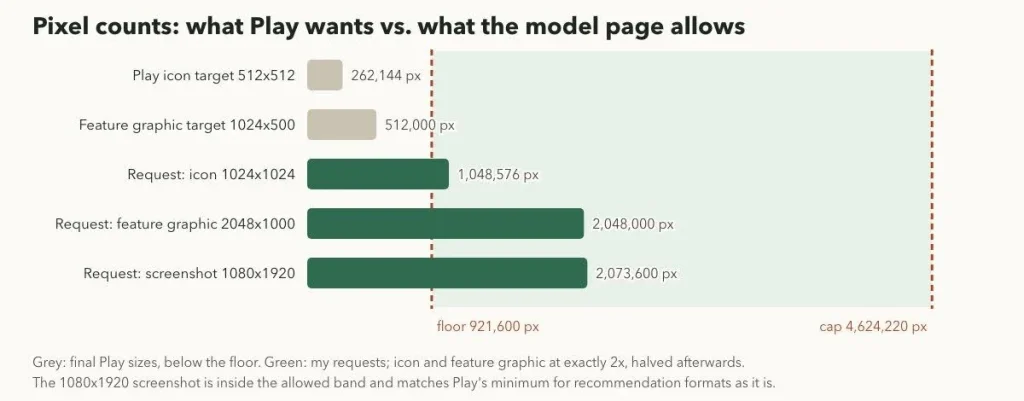
The two small Play sizes sit below the page’s floor. Requesting at exactly twice the size and halving afterwards keeps the proportions exact.
So the icon goes in as 1024×1024 and the feature graphic as 2048×1000, which is exactly 2x of 1024×500, and both are halved afterwards. Screenshots are easier: 1080×1920 is inside the allowed band and is also Play’s minimum for the large recommendation formats, so no resizing is needed.
One trap has nothing to do with the model. Our phones capture at tall ratios, and Play caps a screenshot’s long side at twice the short side. A raw 1080×2340 capture is 2.17:1 and fails. Our captures get cropped to 1080×2160 before they go anywhere near a template.
Screenshots: the model gets the caption band, not the interface
Since Play asks for the real app experience, I don’t want an image model redrawing our interface. Even a careful redraw can change a number on a list item, and then the screenshot is no longer our app. My template gives the model the caption and the background only. The real capture is pasted on top in code.
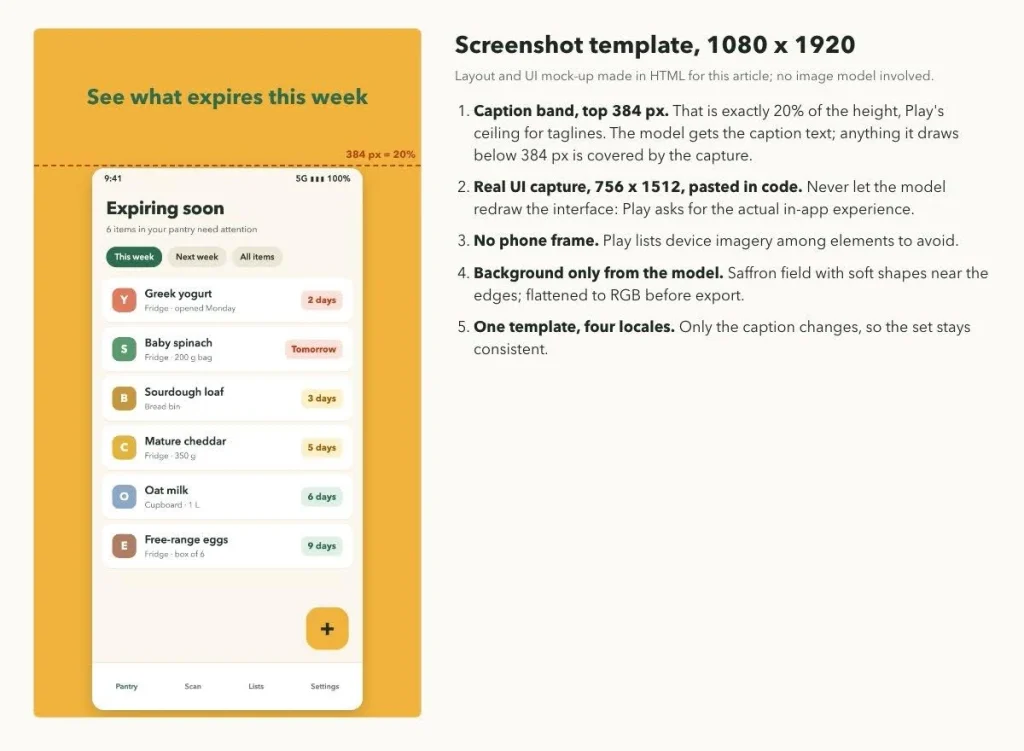
The caption band is 384 px, exactly 20% of the height. The UI here is our HTML mock-up of the app, not a generated image.
The caption is where the new text rendering gets tested, and four languages make the test harder. Polish runs half again as long as English on both captions, and the set uses six accented letters. ByteDance’s corruption rates are measured on Chinese and English, so I treat the other three languages as unverified until we read every output ourselves.
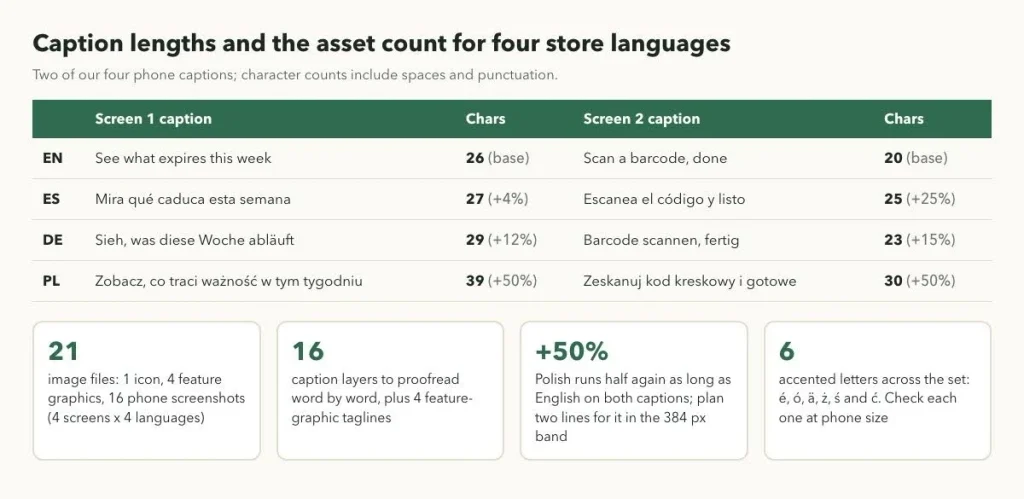
Our captions and what they add up to: 16 caption layers to proofread, with Polish needing two lines in the band.
Play also asks you to leave words like “Best”, “#1”, “Top” and “New” out of screenshots, along with calls to action such as “Download now”. I keep those out of the prompt entirely rather than hoping the model won’t add them.
The request, as the model page documents it
I am working from the documentation on the Seedream 5.5 API page, not from calls I have made. It describes an asynchronous task: you post a job, read a task ID from data[0].task_id, then poll GET /v1/tasks/{task_id} until the status is completed and read the image from data.result.images[0].url[0]. The model value is seedream-5.5. A caption band for the Polish version of screen one would look like this:
POST {API_BASE}/v1/images/generations
Authorization: Bearer {YOUR_KEY}
Content-Type: application/json
{
“model”: “seedream-5.5”,
“prompt”: “Background for a Google Play phone screenshot. At the top, centred, the caption \”Zobacz, co traci ważność w tym tygodniu\” in a bold rounded sans-serif, deep green #2F6B4F, on two lines, within the top fifth. Below it, a plain saffron #F2B33D area with soft cream shapes near the edges. No phone, no interface, no other text.”,
“size”: “1080×1920”,
“output_format”: “png”
}
Per the page, resolution (1K, 1.5K or 2K) applies only when size is a ratio or auto, so it is left out for pixel sizes. Localising the feature graphic would be an edit instead: the English version goes into image_urls (up to 10 references are allowed), the prompt names the old tagline and the new one, and size is auto.
Transparent assets, and where Play makes you drop them
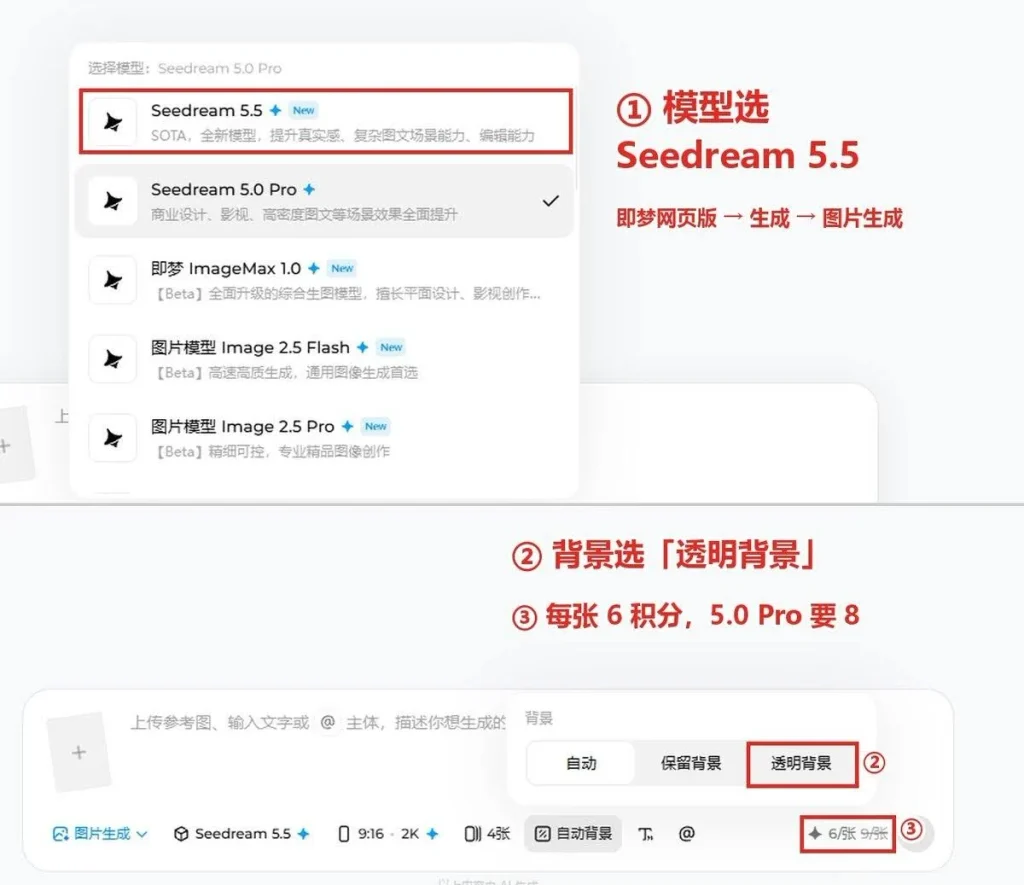
Screenshot from @DDJCXX’s post on X showing how to get transparent output in the Jimeng web app: pick Seedream 5.5 as the model and set the background to transparent. The annotations put the cost at 6 credits per image against 8 for 5.0 Pro. The author adds that the model is also selectable in Doubao’s web image generator and repeats the official figure that only 4 images in 1,000 had severely broken text.
The consumer apps offer transparency as a background setting. The API, per the model page, is stricter: background: “transparent” needs exactly one input image that already has an alpha channel, plus output_format: “png”. In practice that means I would start each sticker or empty-state illustration from an RGBA file, even a rough sketch on a transparent canvas, rather than from text alone.
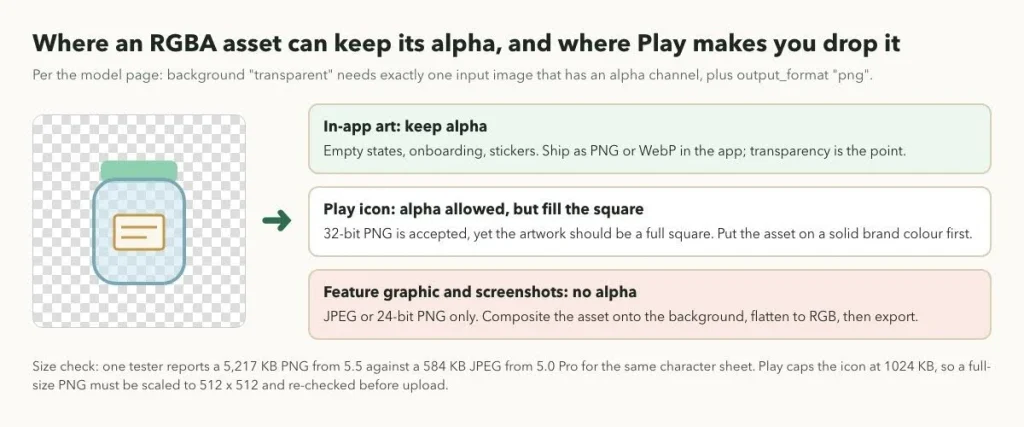
Alpha is useful inside the app. On the Play listing it is only allowed on the icon, and even there the artwork should fill the square.
So our transparent jar illustration keeps its alpha only inside the app. For the icon it goes onto a solid saffron square; for the feature graphic and screenshots it is composited and flattened, because Play does not accept alpha in those files.
File size
One early comparison posted on X makes the weight concrete. @EEJ_OOXO generated the same character sheet with Seedream 5.5 and 5.0 Pro and reports that 5.5 downloaded as a 5,217 KB PNG against a 584 KB JPEG from 5.0 Pro, and that 5.5 kept the left and right panels more consistent by eye.
A full-size PNG of that weight would be five times over Play’s 1024 KB icon limit. At 512 by 512, an RGBA image is 1,048,576 bytes before any compression, exactly 1024 KB, so a compressed PNG almost always fits. “Almost always” is why the size check is automated. For the feature graphic and screenshots I export JPEG after flattening, which removes the alpha problem and the weight in one step.
A pre-upload check that runs in a second
This is the script I wrote for our asset folder. It encodes the rules from Play’s help page and nothing else:
import os, sys
from PIL import Image
RULES = { # Google Play Console Help, “Add preview assets”, checked Nov 2026
“icon”: dict(size=(512, 512), alpha=”required”, max_kb=1024),
“feature”: dict(size=(1024, 500), alpha=”forbidden”),
“screenshot”: dict(min_side=320, max_side=3840, max_ratio=2.0, alpha=”forbidden”),
}
def check(path, kind):
r, im, errs = RULES[kind], Image.open(path), []
w, h = im.size
has_alpha = im.mode in (“RGBA”, “LA”) or “transparency” in im.info
if “size” in r and (w, h) != r[“size”]:
errs.append(f”size {w}x{h}, needs {r[‘size’][0]}x{r[‘size’][1]}”)
if kind == “screenshot”:
if min(w, h) < r[“min_side”] or max(w, h) > r[“max_side”]:
errs.append(f”side out of range: {w}x{h}”)
if max(w, h) / min(w, h) > r[“max_ratio”]:
errs.append(f”ratio {max(w, h) / min(w, h):.2f} > 2″)
if r[“alpha”] == “forbidden” and has_alpha:
errs.append(“has an alpha channel; flatten to RGB”)
if r[“alpha”] == “required” and im.mode != “RGBA”:
errs.append(f”mode {im.mode}; icon must be a 32-bit PNG”)
if im.format not in (“PNG”, “JPEG”):
errs.append(f”format {im.format}”)
kb = os.path.getsize(path) / 1024
if “max_kb” in r and kb > r[“max_kb”]:
errs.append(f”{kb:.0f} KB > {r[‘max_kb’]} KB”)
return errs
if __name__ == “__main__”:
for path, kind in zip(sys.argv[1::2], sys.argv[2::2]):
e = check(path, kind)
print(f”{os.path.basename(path):28s} {kind:10s} {‘OK’ if not e else ‘FAIL: ‘ + ‘; ‘.join(e)}”)
I ran it on a set of test files built from our template. It caught exactly the mistakes I expect to make: an icon saved as plain RGB, a feature graphic still at its 2x size, a screenshot exported with an alpha channel, and the uncropped tall capture.
icon.png icon OK
icon-rgb.png icon FAIL: mode RGB; icon must be a 32-bit PNG
feature-en.jpg feature OK
feature-2x.jpg feature FAIL: size 2048×1000, needs 1024×500
shot-en-1.png screenshot OK
shot-en-1-rgba.png screenshot FAIL: has an alpha channel; flatten to RGB
shot-1080×2340.png screenshot FAIL: ratio 2.17 > 2
The checklist we will use
- Request the icon at 1024×1024 and the feature graphic at 2048×1000, then halve both.
- Never let the model draw the interface; paste the real capture into the template.
- Keep captions inside the top 384 px of a 1080×1920 screenshot.
- No “Best”, “#1”, “Top”, “New”, sale words or calls to action in any prompt.
- Proofread every caption in every language at phone size, accents first.
- For transparent assets through the API, start from an RGBA input and request PNG.
- Flatten feature graphics and screenshots to RGB; keep the icon a full square.
- Run the validator on the whole folder before anything is uploaded.
The bottom line
If ByteDance’s numbers hold up on our captions, Seedream 5.5 could take over the parts of a Play listing that a two-person team usually does badly: localized caption art, transparent illustrations and a feature graphic that looks like the app. It does not change Play’s rules. The interface still has to be real, the files still have to be the right size and channel count, and four languages still need four careful readings. Those parts of the plan don’t depend on any model, which is why they come first.